# Collect for Stripe — Full Documentation
Single-file dump of the entire Collect for Stripe documentation corpus, intended for large language model context windows.
- Generated: 2026-04-21T14:46:37.523Z
- Source: https://docs.collectforstripe.com
- Structured index: https://docs.collectforstripe.com/llms.txt
- Sitemap: https://docs.collectforstripe.com/sitemap.xml
---
# Guide
## Connecting a Card Reader
Source: https://docs.collectforstripe.com/guide/card-readers/connecting-a-reader
# Connecting a Card Reader
import ScreenshotViewer from '@site/src/components/ScreenshotViewer';
To accept chip and contactless payments, you'll need to connect a supported card reader to your device.
## How to Connect
### 1. Turn on the reader
Turn on the reader by pressing the power button. Make sure it has a proper charge. If the battery is below 50%, plug it in to charge.
**For Smart (Internet) Readers:** Before you can connect a Smart Reader in the app, it must first be registered with your Stripe account. Register it in your [Stripe Dashboard](https://dashboard.stripe.com/terminal/readers).
**For Bluetooth Readers (M2, WisePad 3):** Continue to the next step.
### 2. Grant permissions (Bluetooth readers only)
For Bluetooth readers, the app will request Bluetooth permissions. Grant these permissions to allow the app to discover nearby readers.
:::note Smart Readers
Smart Readers connect via internet and do not require Bluetooth permissions.
:::
### 3. Select a location
Choose the Stripe location where this reader will be registered. This helps organize your readers and transactions and is required by Stripe.
You can create locations in your [Stripe Dashboard](https://dashboard.stripe.com/terminal/locations) or directly in Collect by tapping the "Manage Locations" button in the app.
### 4. Connection complete
Once connected, you'll see a confirmation screen. Your reader is now ready to accept payments.
---
## Firmware Updates
Source: https://docs.collectforstripe.com/guide/card-readers/firmware-updates
# Firmware Updates
Card readers will automatically check for firmware updates when they connect (or in the case of Smart Readers, any time they're connected to the internet).
**Some firmware updates are required** so it's a good idea to give yourself time when connecting, in case a required firmware update begins.
Smart Readers attempt their updates in off-hours by default to avoid interruption.
*Most* firmware updates are optional for a period of time, and can be installed when convenient.
---
## Managing Card Readers
Source: https://docs.collectforstripe.com/guide/card-readers/managing-readers
# Managing Card Readers
You can always manage readers directly in your [Stripe Dashboard](https://dashboard.stripe.com/terminal/readers) if needed, but connected readers, locations, and software updates can be managed directly in the app.
Once a reader is connected, you can manage its settings and view its status directly from the app.
## Checking Status
Navigate to **Card Reader & Locations** in the app to:
* Get connected reader info such as battery level, connection status, location
* Manage Locations
* View reader serial number
* Disconnect the connected reader
---
## Supported Readers
Source: https://docs.collectforstripe.com/guide/card-readers/supported-readers
# Supported Readers
Collect for Stripe supports all publicly available [Stripe Terminal Readers](https://stripe.com/terminal-readers). You can order them within your [Stripe Dashboard](https://dashboard.stripe.com/terminal).
As Stripe introduces new readers, we usually already support them. If not, we will work to add support for them as soon as possible.
---
## Troubleshooting
Source: https://docs.collectforstripe.com/guide/card-readers/troubleshooting
# Troubleshooting
This section is currently being updated. Full documentation for this topic is coming soon.
---
## Viewing Activity Logs
Source: https://docs.collectforstripe.com/guide/dashboard/activity-logs
import DashboardLink from '@site/src/components/DashboardLink';
import ScreenshotViewer from '@site/src/components/ScreenshotViewer';
# Viewing Activity Logs
Administrators can see **Recent Activity** on the Web Dashboard home screen.
This includes but is not limited to:
- User sign-ins to the web dashboard and
- User sign-ins to the mobile app
- Password Resets
- One-click "magic link" sign-in
---
## Creating Collect Accounts
Source: https://docs.collectforstripe.com/guide/dashboard/creating-accounts
# Creating Collect Accounts
Are you creating an account for yourself or creating Collect Users for your organization?
### Getting Started with Collect as an Admin
**→ Continue to Getting Started [Standard: Create a Collect Account](/guide/getting-started/collect-account)**
### Creating Collect User Accounts for my Organization
**→ Continue to Getting Started [Adding & Removing Users](/guide/dashboard/users/managing-users)**
---
## Device Management
Source: https://docs.collectforstripe.com/guide/dashboard/device-management
# Device Management
This section is currently being updated. Full documentation for this topic is coming soon.
---
## Managing Products
Source: https://docs.collectforstripe.com/guide/dashboard/managing-products
# Managing Products
The Web Dashboard provides full Inventory management, letting you create and organize Items and Groups, upload images, reorder your catalog, and sync products from Stripe.
Items in Collect are not tracked inventory. They are saved products or services with a name and price, designed for quick addition to transactions from the mobile app.
:::info Permissions Required
The **Inventory - Manage** permission is required to create, edit, and delete Items and Groups. Admins have full access by default.
:::
## Items
### Collect Items
Collect Items are products you create and manage directly. Each Item has a name, price, and optional image.
To create a Collect Item:
1. Navigate to **Inventory** in the dashboard sidebar.
2. Click **Add Item** and select **Collect Product**.
3. Enter a **Name** and **Price**.
4. Optionally assign it to a **Group**.
5. Optionally upload an **Image**.
6. Save.
You can edit or delete any Collect Item by selecting it from the Inventory list or grid.
### Stripe Items
You can also add individual Stripe products to your Inventory by selecting **Stripe Product** when adding a new Item. This lets you search your Stripe Product catalog and link specific products to your Collect Inventory.
Stripe Items display the product image from Stripe automatically.
## Groups
Groups organize your Items into categories. Each Group supports a custom **name**, **color**, and **image**.
To create a Group:
1. Navigate to **Inventory** in the dashboard sidebar.
2. Click **Add Item** and select **Group**.
3. Enter a **Group Name**.
4. Choose a **Color** for the Group.
5. Optionally upload a **Group Image**.
6. Save.
Groups can be edited or deleted from the Inventory screen. Deleting a Group will also remove all Items within it.
### Group Colors
Each Group has a color that provides a visual identifier throughout the Inventory. When browsing Inventory in list view, the Group color appears as a colored border. Stripe Product groups use Stripe's brand color automatically.
## Stripe Product Sync
The dashboard can sync your full Stripe Product catalog into Collect. Synced products appear in a dedicated group marked with Stripe branding.
- Synced products are imported with their name, price, and images from Stripe.
- The sync runs periodically to keep your catalog current.
- You can trigger a manual sync from the dashboard.
- Synced Stripe Products are read-only in Collect. To modify them, update the product in your Stripe Dashboard.
## Reordering
Items and Groups can be reordered from the dashboard by dragging and dropping them into the desired position. The new order is reflected in the mobile app.
## Layout Options
The Inventory screen supports both **grid** and **list** views. Toggle between them using the layout selector. Grid view shows Items and Groups as tiles with images, while list view shows them in a compact format with Group colors as a visual accent.
## Related
- [Managing Products (Mobile App)](../mobile-app/managing-products) -- the same features accessible from the Collect mobile app.
- [Role Differences](./users/role-differences) -- understand which roles can manage Inventory.
- [Assigning Permissions](./users/assigning-permissions) -- grant Inventory access to User role accounts.
---
## Assigning Permissions
Source: https://docs.collectforstripe.com/guide/dashboard/users/assigning-permissions
import ScreenshotViewer from '@site/src/components/ScreenshotViewer';
import DashboardLink from '@site/src/components/DashboardLink';
# Assigning Permissions
When you create a user with the **User** role, they start with no access to any features. You must explicitly grant permissions for each area of the app they need.
**Admin** role users always have full access and cannot have their permissions restricted. See [Role Differences](./role-differences.md) for more on how the two roles compare.
:::info Who Can Assign Permissions
Only account **Admins** can view and change permissions for other users. Users with the User role can view their own permissions but cannot modify them.
:::
## How to Assign Permissions
1. Log in to the Web Dashboard.
2. Navigate to **Users** and select the user you want to configure.
3. In the **App Permissions** section, toggle the permissions you want to grant.
4. Changes are saved automatically.
The user's permissions take effect the next time they open or refresh the app.
## Permission Scopes
Permissions are organized into scopes. Within each scope, there are specific activities you can enable or disable independently.
### Transactions
| Permission | What It Allows |
| :--- | :--- |
| **Charges** | Process standard payment transactions. |
| **Subscriptions** | Create and manage recurring subscriptions. |
| **Authorize Only** | Place authorization holds without capturing payment immediately. |
### Customers
| Permission | What It Allows |
| :--- | :--- |
| **Use** | View and select Customers during transactions. |
| **Manage** | Create, edit, and save payment methods to Customers. |
### Inventory
| Permission | What It Allows |
| :--- | :--- |
| **Use** | View Inventory and add Items to transactions. |
| **Manage** | Create, edit, and delete Items and Groups. |
### Settings
These permissions control which app settings a User role account can access and modify.
| Permission | What It Controls |
| :--- | :--- |
| **Receipts** | Change receipt title and message settings. |
| **Test Mode** | Enable or disable Test Mode in the app. |
| **Gratuity** | Access and modify tipping/gratuity settings (Enabled or disabled via **Payment Flow**, but percentages can be customized separately with this permission). |
| **Taxes and Fees** | Access Service Fee settings or Add/Edit Tax Rates. |
| **Currency** | Change the currency setting. |
| **Kiosk Mode** | Access Kiosk Mode and its settings. |
### Kiosk
| Permission | What It Allows |
| :--- | :--- |
| **Use** | Launch and use Kiosk Mode from the app. |
## How Permissions Affect the App
Features a user does not have permission for are hidden from the app entirely. For example:
- A user without **Inventory - Use** will not see the Inventory tab during transactions.
- A user without **Customers - Manage** will not see the Edit or Add Card buttons on Customer details.
- A user without any **Settings** permissions will see a simplified Settings screen.
This keeps the interface clean and prevents accidental access to features that aren't relevant to a given team member's role.
## Best Practices
- **Start minimal**: Grant only the permissions each user needs for their day-to-day tasks. You can always add more later.
- **Separate cashier and manager access**: Cashiers typically need Transactions (Charges) and Customers (Use). Managers may also need Inventory (Manage), Settings access, and Customer (Manage).
- **Review periodically**: As roles shift, revisit permissions to make sure they still match what each team member actually needs.
## Related Topics
- **[Overview of Role Differences](./role-differences.md)** -- Understand Admin vs. User roles
- **[Adding & Removing Users](./managing-users.md)** -- Create and manage user accounts
---
## Adding & Removing Users
Source: https://docs.collectforstripe.com/guide/dashboard/users/managing-users
import DashboardLink from '@site/src/components/DashboardLink';
# Adding & Removing Users
Managing users in Collect Accounts allows you to control who has access to your payment processing system and what they can do.
:::info Collect Admin vs Stripe admin
Although some Collect Admin users *may* also be Stripe Administrators, the two are separate. Adding a Collect Admin in no way creates, alters, or otherwise connects directly to a Stripe User and that Stripe user's access directly to the Stripe Dashboard or APIs.
:::
## Adding a New User
To add a new user to your Collect Account:
1. Navigate to the Dashboard
2. Go to **Account & Users** in the navigation menu
3. Click **"Add User"**
4. Enter the user's name and email address
5. Select the user's role:
- **Admin**: Full access to all features and settings
- **User**: Can have permissions specifically set (customizable access), which apply both to the web dashboard and mobile app.
6. Click "Create User"
The user list will reload and you should see the new user listed. Tap his or her name or the person icon to view details or configure permissions.
**Please Note:** If creating a *User* role, all permissions will default to **off**. This is standard best security practice. Don't forget to view the user and configure desired permissions.
The user will receive an invitation email and can set up their password to access the system.
### Admin Role
Users with the **Admin** role have:
- **NO new Stripe dashboard permissions** - Collect Accounts are entirely separate from Stripe Dashboard User accounts, and one cannot be used to sign into the other, even if you use the same email address.
- Full access to all Collect features and settings
- Full access to the mobile app including transactions, Stripe Customer management, Product management etc.
- Ability to manage other users
- Ability to modify Collect account settings
- Ability to see login activity
- No permission restrictions
:::tip Tip
Use the **Admin** role for: Business owners, managers who manage other users, or otherwise trusted team members who need unrestricted access to Collect.
:::
### User Role
Users with the **User** role:
- Always sign into the app using [Sign In with a Collect Account](/guide/mobile-app/signing-in#option-2-sign-in-with-a-collect-account)
- Have highly customizable permissions
- Can be edited (including permissions) by an **Admin** at any time
- Can be revoked at any time
**Use User role for:** Staff members, cashiers, or team members who need limited access based on their responsibilities.
After creating a User role, you can [assign specific permissions](./assigning-permissions) to control exactly what they can access.
## Removing a User
To remove a user from your Collect Account:
1. Navigate to the Dashboard
2. Go to **Account & Users** and select **Collect Users**
3. Find the user you want to remove
4. Click the **"Delete"** (trash bin) icon next to their name
5. Confirm the removal
**Note:** Removing a user will immediately revoke their access. He or she will no longer be able to sign in to the mobile app or dashboard.
## Managing Existing Users
To modify an existing user:
1. Navigate to the Dashboard
2. Go to **Account & Users**
3. Find the user you want to modify
4. Click on their name or the **"Edit"** button
5. You can:
- Change their role (Admin ↔ User)
- Modify their [permissions](./assigning-permissions) (if User role)
- Update their email address
- Reset their password
## Best Practices
- **Start with User role**: When in doubt, create users with the User role and grant specific permissions rather than giving everyone Admin access
- **Regular audits**: Periodically review your user list to ensure only active team members have access
- **Permission principle**: Grant users only the permissions they need for their role
- **Document access**: Keep track of who has access and why, especially for Admin roles
## Related Topics
- **[Assigning Permissions](./assigning-permissions)** - Learn how to set specific permissions for User role accounts
- **[Role Differences](./role-differences)** - Understand the differences between Admin and User roles
---
## Overview of Role Differences
Source: https://docs.collectforstripe.com/guide/dashboard/users/role-differences
import DashboardLink from '@site/src/components/DashboardLink';
# Overview of Role Differences
Understanding the difference between **Admin** and **User** roles is important for managing your team's access to Collect.
## Admin Role
Users with the **Admin** role have full, unrestricted access to all features and settings in Collect.
### What Admins Can Do
- **Full Feature Access**: Access to all features without restrictions
- **User Management**: Add, remove, and modify other users
- **Permission Management**: Change permissions for User role accounts
- **Account Settings**: Modify account settings and configurations
- **All Transactions**: View and manage all transactions
- **All Products**: View and manage all products
- **Device Management**: Manage card readers and locations
- **No Restrictions**: Cannot have permissions limited or restricted
### When to Use Admin Role
Use the Admin role for:
- Business owners
- Managers who need full control
- Trusted team members who need unrestricted access
- Users who need to manage other team members
:::info Role Selection
Be selective when assigning Admin roles, as these users have complete control over your Collect account. Remember, an unwanted or expired user of any role can and should be [removed](/guide/dashboard/users/managing-users#removing-a-user).
:::
## User Role
Users with the **User** role have customizable permissions that can be specifically set for each feature.
### What Users Can Do
- *Accept* Transactions (without viewing others)
- **Customizable Access**: Permissions can be set for each feature individually
- **Flexible Permissions**: Can have different access levels for different features
- **Controlled Access**: Only access features you grant them permission to use
- **No User Management**: Cannot add, remove, or modify other users
- **No Account Settings**: Cannot modify account-level settings
### When to Use User Role
Use the User role for:
- Staff members and cashiers
- Team members who need limited access
- Users who only need specific features
- Anyone who doesn't need full administrative access
**Note:** After creating a User role account, you must set permissions to grant that user access.
## Key Differences
| Feature | Admin | User |
|---------|-------|------|
| **Full Feature Access** | ✅ Yes | ⚙️ Customizable |
| **Manage Other Users** | ✅ Yes | ❌ No |
| **Modify Permissions** | ✅ Yes | ❌ No |
| **Account Settings** | ✅ Yes | ❌ No |
| **View All Transactions** | ✅ Yes | ⚙️ Depends on permissions |
| **Process Payments** | ✅ Yes | ⚙️ Depends on permissions |
| **Manage Products** | ✅ Yes | ⚙️ Depends on permissions |
## Best Practices
- **Start with User role**: When in doubt, create accounts with the User role and grant specific permissions
- **Principle of least privilege**: Only grant the minimum permissions needed for each user's role
- **Regular reviews**: Periodically review Admin accounts to ensure they still need full access
- **Document access**: Keep track of why each Admin has full access
## Related Topics
- **[Adding & Removing Users](./managing-users)** - Learn how to create user accounts
- **[Assigning Permissions](./assigning-permissions)** - Configure permissions for User role accounts
---
## Collect Account
Source: https://docs.collectforstripe.com/guide/getting-started/collect-account
import DashboardLink from '@site/src/components/DashboardLink';
import ScreenshotViewer from '@site/src/components/ScreenshotViewer';
# Collect Account
A Collect Account gives you access to powerful team management features and the full web dashboard. Create Collect users (including other admins), manage products, manage permissions, track activity, and much more—all from one centralized place.
## Why Collect Accounts?
With a Collect Account, you can:
- **Create and manage team members** with customizable permission levels
- **Access the full web dashboard** with advanced features like product management, uploading product images, invoices, user management, and more
- **Switch between multiple Stripe accounts** seamlessly (highly recommended if you have multiple Stripe accounts)
- **Sign in to the mobile app** using your Collect Account credentials
- **Control access** by restricting features and data based on each user's role
- **Revoke access** when a user leaves the organization, immediately terminating their ability to use Collect with that account
## Getting Started
### Step 1: Create Your Collect Account
You can create your account by going to the dashboard login page and clicking **"Don't have an account? Sign up here"**.
Or, just follow this link → Sign Up
**Ready to start?**
→ Create your Collect Account
1. Enter your name and email address to create your account
2. Check your email for a confirmation / set-password link
3. Once inside the dashboard, Connect with Stripe and continue
### Step 2: Connect Your Stripe Account
After creating your Collect Account, you'll be prompted to connect your Stripe account right there in the web dashboard:
1. Sign in with your **Stripe administrator credentials**
2. Select the Stripe account you want to connect
:::info Stripe Admin Required
Only Stripe account administrators can connect a Stripe account to a platform. This step only needs to be done once.
:::
### Step 3: Access Your Dashboard
Once your Stripe account is connected, you'll see all your Collect Dashboard information and have access to all features.
### Step 4: Sign In to the Mobile App
You can now [sign in](./../mobile-app/signing-in) to the Collect mobile app using your Collect Account. You'll have full access to all features based on your account permissions.
## What's Next?
Now that you have your Collect Account set up, you can:
- **[Add team members](./../dashboard/users/managing-users)** and manage your team
- **[Assign permissions](./../dashboard/users/assigning-permissions)** to control what each user can access
- **[Learn about permission levels](./../dashboard/users/role-differences)** to understand role differences
- **[View activity logs](./../dashboard/activity-logs)** to track team member sign-ins
---
## Connecting Your Stripe Account
Source: https://docs.collectforstripe.com/guide/getting-started/connecting-your-stripe-account
# Connecting Your Stripe Account
:::info Required Step
**Connecting your Stripe account is required** to use Collect for Stripe. Whether you're a solo operator or part of a team, you'll need to connect your Stripe account at some point in the setup process.
:::
## Two options to Get Started
### 1. Quick Start: Direct Stripe Connection
**This is the fastest way to get started.** The Quick Start method combines both account connection and sign-in into a single step, but does not include access to the web dashboard.
**→ Continue to [Quick Start: Direct Stripe Connection](./quick-start)**
### 2. Collect Account (Recommended)
Why do we recommend this?
Haivng a Collect Account (even as a solo operator) gives you access to the web dashboard, including deep information about users, products, app versions, users, outstanding Stripe account requirements, and more.
:::tip Multiple Stripe Accounts?
**If you have multiple Stripe accounts, a Collect Account is highly recommended.**
It will be much easier to switch between accounts and manage everything seamlessly. Collect supports this to avoid constantly signing out and back in just to switch accounts.
:::
**→ Continue to [Create a Collect Account](./collect-account)**
## Security & Permissions
:::note Secure Authentication
Your Stripe account credentials are never stored by Collect. All authentication is handled securely through Stripe's OAuth system.
:::
Collect only requests the minimum permissions and data needed to function, and never stores your Stripe data.
## Next Steps
Choose your setup path based on your needs:
- **Solo or single-user setup?** → [Quick Start: Direct Stripe Connection](./quick-start)
- **Team or multi-user setup?** → [Create a Collect Account](./collect-account)
---
## Installation (iOS & Android)
Source: https://docs.collectforstripe.com/guide/getting-started/installation
import AppStoreLink from '@site/src/components/AppStoreLink';
# Installation (iOS & Android)
The app is free to download, and transactions in Test Mode are free & unlimited. Just go get the app using these links on either iOS or Android.
#### iOS (iPhone & iPad)
#### Android (mobile or tablet)
## What's Next?
Once you've installed the app:
- **[Connect your Stripe account](./connecting-your-stripe-account)** to get started
- Learn about **[signing in](./../mobile-app/signing-in)** to the app
- Explore the **[Quick Start options](./connecting-your-stripe-account)** for the fastest setup
---
## Quick Start: Stripe Connect
Source: https://docs.collectforstripe.com/guide/getting-started/quick-start
# Quick Start: Stripe Connect
Quick Start is the fastest way to get started. It combines both account connection and sign-in into a single step. No complex setup required. Accept payments immediately.
:::info Stripe Admins Only
You must be a Stripe Administrator in order to connect your Stripe account to any platform, including Collect.
:::
## Connecting Your Stripe Account
import ScreenshotViewer from '@site/src/components/ScreenshotViewer';
import DashboardLink from '@site/src/components/DashboardLink';
1. Open the [Collect mobile app](./../getting-started/installation)
2. On the sign-in screen, tap **"Connect with Stripe"**
3. Enter your Stripe account email and password, then select the Stripe account you want to connect
4. Authorize Collect to access your Stripe account when prompted
That's it! Once connected, you'll have immediate access to all Collect's features.
## Signing In on Additional Devices
You can run Collect on unlimited devices simultaneously, whether using this Quick Start or signing in with a Collect Account.
Just repeat the above steps on any new device.
:::info When to Use Collect Accounts Instead
Consider using a **[Collect Account](./collect-account)** if you want to:
- **Manage multiple Stripe accounts** (highly recommended - makes switching between accounts seamless)
- Have team members sign in without Stripe credentials
- Manage multiple users with different permission levels
- Restrict access to certain features or data
- Track user activity and/or revoke access
:::
## Troubleshooting
**Can't sign in?**
First, verify if you are using a Collect Account or Stripe Connect.
- **Stripe Connect:** Contact Stripe directly to reset your password.
- **Collect Account:** Reset your password here or use the email sign-in link option on the app's sign-in screen.
## Next Steps
- Learn about **[permission levels](/guide/dashboard/users/role-differences)** if you're considering team access later
- Explore the **[mobile app](./../mobile-app/payment-flows)**
---
## Collect for Stripe Documentation
Source: https://docs.collectforstripe.com/guide/intro
> Overview of Collect for Stripe — mobile point-of-sale app, web dashboard, card readers, and integration reference.
# Collect for Stripe Documentation
Collect for Stripe is the Instant Point of Sale for Stripe users. This documentation covers the mobile app (iOS and Android), the web dashboard, supported card readers, and the URL-scheme integration that lets other apps and websites launch Collect to capture a payment.
Payments accepted through Collect settle **directly to your own Stripe account** — there is no intermediary merchant of record, no separate merchant onboarding, and no secondary payout flow.
## Where to go next
- **New to Collect?** Start with [Connecting Your Stripe Account](/guide/getting-started/connecting-your-stripe-account).
- **Using the mobile app?** See [Payment Flows](/guide/mobile-app/payment-flows) and [Processing Transactions](/guide/mobile-app/taking-payments).
- **Setting up a team?** Visit [Creating Accounts](/guide/dashboard/creating-accounts) and [Managing Users](/guide/dashboard/users/managing-users).
- **Connecting hardware?** See [Supported Readers](/guide/card-readers/supported-readers) and [Connecting a Reader](/guide/card-readers/connecting-a-reader).
- **Integrating Collect from another app or website?** Jump to the [API / URL-scheme integration](/api/intro).
## For AI agents and LLMs
This site publishes two LLM-friendly indices:
- [`/llms.txt`](https://docs.collectforstripe.com/llms.txt) — curated, link-first site map following the [llms.txt proposal](https://llmstxt.org/).
- [`/llms-full.txt`](https://docs.collectforstripe.com/llms-full.txt) — the entire documentation corpus concatenated into a single plain-text file for direct ingestion.
A standard [`/sitemap.xml`](https://docs.collectforstripe.com/sitemap.xml) is also published for crawlers.
---
## Creating Subscriptions
Source: https://docs.collectforstripe.com/guide/mobile-app/creating-subscriptions
# Creating Subscriptions
import DashboardLink from '@site/src/components/DashboardLink';
import ScreenshotViewer from '@site/src/components/ScreenshotViewer';
Collect can create Stripe Subscriptions for recurring billing directly from the mobile app. Subscriptions are built on top of your existing Stripe Product catalog— if you have Products with recurring Prices in Stripe, they're already available in Collect.
:::info Permissions Required
You need the **Transactions - Subscriptions** permission to create subscriptions. When a recurring item is added to a transaction, the Payment Flow will automatically prompt for a Customer.
_Note: Collect users without the **Customers - Use** permission won't have access to the Customers screen, so they can't start a subscription from a Customer's detail view._
:::
## How It Works
Subscriptions in Collect use the same Inventory and transaction flow as one-time payments, with a few key differences:
1. **Recurring items come from your Stripe Product catalog.** Collect automatically syncs your Stripe Products into a dedicated **Stripe Products** group in Inventory. Products with recurring Prices (monthly, yearly, etc.) appear alongside one-time Products.
2. **A Customer is always required.** Subscriptions need a Customer with a payment method, so Collect will require one regardless of your Payment Flow's Customer setting.
3. **A payment method is required.** See Step 5 of _Creating a Subscription_ below.
## Creating a Subscription
1. Start a new transaction from the main screen.
2. Switch to the **Inventory** tab and open the **Stripe Products** group.
3. Add one or more items that have **recurring Prices**. The item's price and billing interval come from your Stripe Product configuration.
4. Follow the Payment Flow prompts. Since a Customer is required, you'll be asked to select or create one.
5. Collect checks for an existing payment method on the Customer. If none is found, you'll be prompted to capture one via card reader or manual entry. You can also choose to capture a new card even if the Customer already has one on file.
6. Process the transaction.
Collect creates the Stripe Subscription using the captured or selected payment method and the recurring Price(s) you selected. The payment method is saved to the Customer for future billing. Tax rates from your Payment Flow are applied to the subscription if configured.
:::caution One type per transaction
You cannot mix recurring and one-time items in the same transaction. If you add a recurring item, all items in that transaction must be recurring. Start a separate transaction for one-time charges.
:::
## Stripe Products in Inventory
Collect automatically imports your Stripe Product catalog, including both one-time and recurring Products. Synced Products appear in a dedicated **Stripe Products** group, visually distinguished with Stripe branding.
- **One-time Prices** are processed as regular payments.
- **Recurring Prices** trigger the subscription flow described above.
The distinction is based on the Price type configured in your Stripe Product catalog. You don't need to configure anything in Collect -- just set up your Products and Prices in Stripe, and they'll appear in the Stripe Products group automatically.
For more on how Inventory works, see [Managing Products](managing-products.md).
## What Happens After
Once a subscription is created:
- The subscription appears on the **Customer's detail screen** under **Active Subscriptions**, showing the product name, price, billing interval, and status.
- Stripe handles all future billing automatically— recurring invoices, payment collection, and retries are managed by Stripe.
- You can view and manage the subscription from the Stripe Dashboard.
## Requirements
To create subscriptions in Collect, you need:
- At least one **Stripe Product** with a **recurring Price** in your Stripe catalog.
- The Stripe Product sync must be active (your Products appear in the Stripe Products group in Inventory).
- A **Customer** with a saved payment method, or the ability to collect one at the time of sale.
## Related Topics
- **[Managing Products](managing-products.md)** -- Inventory and Stripe Product sync
- **[Managing Customers](managing-customers.md)** -- Creating Customers and saving payment methods
- **[Payment Flows](payment-flows.md)** -- Configuring transaction behavior
- **[Processing Transactions](taking-payments.md)** -- General transaction flow
---
## Disputes
Source: https://docs.collectforstripe.com/guide/mobile-app/disputes
# Disputes
---
## Fees
Source: https://docs.collectforstripe.com/guide/mobile-app/fees
# Fees
---
## Managing Customers
Source: https://docs.collectforstripe.com/guide/mobile-app/managing-customers
# Managing Customers
import DashboardLink from '@site/src/components/DashboardLink';
Collect lets you create and manage Stripe Customers directly from the mobile app. Customers you create here are real Stripe Customer objects on your connected account -- they're not stored separately by Collect.
Attaching a Customer to a transaction enables saved payment methods, recurring billing, and better record-keeping.
:::info Permissions Required
You need the **Customers - Use** permission to view and select Customers during transactions, and the **Customers - Manage** permission to create or edit Customers. Admins have full access by default.
:::
## Viewing Customers
*Main Menu → Customers*
The Customers screen shows all Customers on your Stripe account. The list supports pull-to-refresh and loads more Customers automatically as you scroll.
Use the **search bar** at the top to find Customers by name, email, or phone number. Search checks both locally loaded Customers and your full Stripe Customer list.
## Creating a Customer
*Main Menu → Customers → Create*
1. Enter a **Name** (required).
2. Optionally add an **Email**, **Phone**, and **Description**.
3. Optionally add a **Billing Address** (street, city, state/province, postal code, country).
4. Tap **Create Customer**.
The new Customer is created on your Stripe account immediately and will appear in both Collect and the Stripe Dashboard.
## Customer Details
Tap any Customer to view their details. The detail view shows:
- **Name and email**
- **Description** (if provided)
- **Payment Methods** -- any cards or other payment methods saved on file
- **Active Subscriptions** -- any current subscriptions associated with the Customer
- **Billing Address** -- the Customer's billing details
### Actions
From the Customer detail view, you can:
| Action | Description |
| :--- | :--- |
| **Edit** | Update the Customer's name, email, phone, description, or address. |
| **Add Card** | Save a new payment method using a connected card reader. The card is saved to the Customer's Stripe profile for future use. |
| **Payment** | Start a new transaction with this Customer already attached. This navigates to the transaction screen with the Customer pre-selected. |
:::tip
Adding a card via a reader is the recommended way to save payment methods. The card details are collected securely through the reader and never pass through the app.
:::
## Editing a Customer
From the Customer detail view, tap **Edit** to update any of the Customer's information. Changes are saved to Stripe immediately.
## Using Customers in Transactions
Customers integrate with your [Payment Flow](payment-flows.md) settings. Depending on your configuration:
- **Always**: Every transaction requires a Customer to be selected before processing.
- **Ask**: You'll be prompted to select a Customer, but can skip.
- **Never**: Transactions proceed without a Customer prompt.
When a Customer with saved payment methods is attached to a transaction, Collect will default to offering their saved payment methods -- even if a card reader is connected. You can cancel and collect payment normally if needed.
## Tablet Experience
On tablets, the Customers screen uses a split-view layout. The Customer list appears on the left, and selecting a Customer shows their details in a sidebar on the right. Creating and editing Customers also happens in the sidebar without leaving the list.
---
## Managing Products
Source: https://docs.collectforstripe.com/guide/mobile-app/managing-products
# Managing Products
import ScreenshotViewer from '@site/src/components/ScreenshotViewer';
import DashboardLink from '@site/src/components/DashboardLink';
Collect includes a built-in Inventory feature that lets you save Items with a name and price for quick addition to transactions. Items are not tracked inventory -- they're shortcuts for common products and services that speed up your workflow.
You can organize Items into Groups, sync your Stripe Product catalog, and add images to both Items and Groups.
:::info Permissions Required
You need the **Inventory - Use** permission to view and add Items to transactions, and the **Inventory - Manage** permission to create, edit, or delete Items and Groups. Admins have full access by default.
:::
## Items
An Item is a saved product or service with a name and price. When processing a transaction, switch to the **Inventory** tab to browse and tap Items to add them.
### Creating an Item
*Main Menu → Inventory → Add Item*
1. Enter a **Name** and **Price**.
2. Optionally assign the Item to a **Group**.
3. Optionally add an **Image** (cropped and optimized automatically).
4. Save the Item.
### Editing and Deleting Items
From the Inventory screen, select an Item to edit its details, change its Group, update its image, or delete it. Deleting an Item does not affect past transactions.
:::note Shared Across All Users
Items and Groups are stored on your account, not on your device. Any changes you make -- editing, reordering, or deleting -- are reflected for all users on the account immediately.
:::
## Groups
Groups let you organize your Items into categories. Think of them as folders -- each Group contains its own set of Items.
### Creating a Group
*Main Menu → Inventory → Add Group*
1. Enter a **Group Name**.
2. Choose a **Color** for the Group. This color is used as a visual identifier throughout the Inventory screen.
3. Optionally add a **Group Image**.
4. Save the Group.
### Editing and Deleting Groups
Select a Group to edit its name, color, or image. Deleting a Group will also remove all Items within it.
## Stripe Product Sync
If you have products in your Stripe account, Collect will automatically bring them into your Inventory. Synced Products appear in a dedicated **Stripe Products** group, visually distinguished with Stripe branding.
Key details about synced products:
- Product images from Stripe are displayed automatically.
- The sync is managed by the server and runs periodically to keep your catalog up to date.
- You can trigger a sync manually from the [Web Dashboard](https://dashboard.collectforstripe.com).
## Using Inventory During Transactions
When starting a transaction, you can switch between **Custom Amount** (manual entry) and the **Inventory Items** tab. The Inventory tab shows all your Groups and Items in either a grid or list layout.
- Tap a **Group** to browse its Items.
- Tap an **Item** to add it to the current transaction. Adjust the quantity as needed.
- Use **Search Inventory** to find Items by name across all Groups.
The layout (**Grid** or **List**) can be toggled from the Inventory screen. On tablets, the transaction summary appears alongside the Inventory for a side-by-side workflow.
## Images
Both Items and Groups support images:
- **Collect Items**: Upload an image directly from your device. Images are automatically cropped and optimized.
- **Groups**: Upload an image that represents the category. Group images appear alongside the Group color.
## Managing from the Web Dashboard
Everything described above can also be managed from the Web Dashboard, including creating and editing Items and Groups, uploading images, reordering Items, and triggering a Stripe Product sync.
See the [Dashboard documentation](../dashboard/managing-products) for more details.
---
## Payment Flows
Source: https://docs.collectforstripe.com/guide/mobile-app/payment-flows
# Payment Flows
A Payment Flow is a **group of settings** that controls how you process transactions in Collect.
Payment Flows allow you to customize these things as a group, rather than toggling individual settings for all users or dealing with permissions issues.
:::tip Tip
Create multiple flows for different scenarios and switch between them as needed.
:::
For example, if you want to require a customer is added to all transactions, that's a Payment Flow setting. Apply taxes by default? That's another. Offer the opportunity to add a tip? → Payment Flow Setting
## Streamlining Your Payment Processing
Items set to 'Never' in your Payment Flow will be hidden entirely, simplifying and speeding up processing.
Disable anything you don't use or disable [all options](#configuration-options) to make your Processing Flow jump directly to the Card Reader Input or Payment Sheet.
Each screen will **only** display if it is enabled in your selected Payment Flow.
## Creating Payment Flows
#### Dashboard
You can create and manage Payment Flows from the [Web Dashboard](https://dashboard.collectforstripe.com) or directly within the mobile app (if you have the necessary permissions).
#### Mobile App
*Main Menu → Settings → Payment Settings*
:::info Note
If an account administrator has created at least one Payment Flow, it will be automatically selected for other users when they first launch the app. Users do _not_ need permissions for this. The Payment Flow will simply be assigned.
:::
## Configuration Options
Each Payment Flow consists of several steps that can be configured to **Always**, **Ask**, or **Never**.
| Setting | Option | Behavior |
| :--- | :--- | :--- |
| **Workflow** | **Full Sale** | Items are added to the transaction and processing is initiated manually when ready. |
| | **Quick Sale** | The transaction starts automatically as soon as the first item is added. |
| **Set Stripe Customer** | **Always** | Require a customer to be attached to the sale. |
| | **Ask** | Prompt to select a customer, but allow skipping. |
| | **Never** | Do not prompt for a customer. |
| **Apply Taxes** | **Always** | Automatically apply default tax rates (no prompt presented). |
| | **Ask** | Apply defaults, then prompt to confirm or change tax selection. |
| | **Never** | Never apply tax (skip entirely). |
| **Show Tipping** | **Ask** | Offer an opportunity to add a tip. |
| | **Never** | Do not offer an opportunity to tip. |
| **Collect Signature** | **Always** | Require a signature to complete the transaction. |
| | **Ask** | Ask for a signature, but allow skipping. |
| | **Never** | Never ask for a signature. |
| **Send Receipt** | **Always** | Require an email receipt to be sent. |
| | **Ask** | Ask if the customer wants an email receipt (skippable). |
| | **Never** | Never prompt for an email receipt. |
| **Save Cards** | **Always** | Always save the card for future purchases (requires Customer). |
| | **Ask** | Ask to save the card for future purchases. |
| | **Never** | Never save the card. |
---
## Payout Schedules
Source: https://docs.collectforstripe.com/guide/mobile-app/payout-schedules
# Payout Schedules
---
## Receipts
Source: https://docs.collectforstripe.com/guide/mobile-app/receipts
# Receipts
---
## Refunds
Source: https://docs.collectforstripe.com/guide/mobile-app/refunds
# Refunds
You can issue refunds for completed transactions directly from the Collect mobile app. Refunds are processed through Stripe and returned to the original payment method.
:::info Permissions Required
You need the **Charges - Manage** permission to issue refunds. Admins have full access by default.
:::
## Issuing a Refund
1. Navigate to **Charges** from the main menu.
2. Tap the transaction you want to refund to open its details.
3. Tap the **Refund** button in the Payment Method section.
4. A confirmation dialog will appear showing the refundable amount.
5. Tap **Confirm** to process the refund.
A success or error notification will appear once the refund is processed. The transaction detail will update to reflect the new status.
## Refund Eligibility
Not all transactions can be refunded. A transaction is eligible for a refund when:
- The payment **succeeded** (was captured).
- There is still an **unrefunded balance** remaining on the charge.
Transactions that failed, were canceled, or are still pending cannot be refunded. Transactions that have already been fully refunded will not show the Refund button.
## Full vs. Partial Refunds
When you refund a transaction, Collect refunds the **remaining refundable amount** -- the original captured amount minus any previous refunds. If a transaction has already been partially refunded through another channel (such as the Stripe Dashboard), Collect will show and refund only what remains.
After a refund, the transaction status updates accordingly:
| Outcome | Status Shown |
| :--- | :--- |
| Entire amount refunded | **Refunded** |
| Partial amount refunded | **Partially Refunded** |
Both statuses display the total amount refunded on the transaction detail screen.
## How Refunds Are Processed
Refunds are processed through the Stripe API, not through the card reader. This means you do not need a reader connected to issue a refund -- it works regardless of how the original payment was collected.
Refund timing depends on the cardholder's bank, but typically takes 5-10 business days to appear on the customer's statement.
## Related Topics
- **[Viewing Transactions](viewing-transactions.md)** -- Find and review past charges
- **[Processing Transactions](taking-payments.md)** -- How payments are collected
---
## App Preferences
Source: https://docs.collectforstripe.com/guide/mobile-app/settings/app-preferences
# App Preferences
These are device-level settings that affect only the current device. They do not change anything for other users on your account.
## App Color
Personalize the app by choosing a primary accent color. This changes the color of buttons, headers, and interactive elements throughout the app. Tap the color preview to open the color picker, or reset to the default blue.
## Language
Collect supports multiple languages. Select your preferred language from **Settings → Language** to change the app interface.
:::info
For manual card entry, Collect uses Stripe's Payment Sheet, which always uses the device's system language setting regardless of the language selected here.
:::
## Device Name
Assign a friendly name to this device (e.g., "Front Counter iPad" or "Mobile Register"). The device name is included in transaction metadata, making it easier to identify which device processed a given transaction -- especially useful when running multiple devices.
---
## Settings
Source: https://docs.collectforstripe.com/guide/mobile-app/settings
# Settings
import ScreenshotViewer from '@site/src/components/ScreenshotViewer';
*Main Menu → Settings*
The Settings screen lets you configure how Collect handles transactions, customize the app, communications and more.
Some of these settings work in combination with your [Payment Flow](../payment-flows.md), which controls whether and how some features are applied during processing.
:::info Permissions
Some settings are only visible if your account role has the required permissions. If you don't see a setting listed here, ask your account administrator.
:::
---
## Kiosk Mode
Source: https://docs.collectforstripe.com/guide/mobile-app/settings/kiosk-mode
# Kiosk Mode
Kiosk Mode turns the app into a customer-facing self-service terminal. When enabled, the app locks into a streamlined interface designed for unattended use -- customers can browse products, process payments, and complete transactions without staff interaction.
Configure Kiosk Mode settings from **Settings → Kiosk Mode**.
:::info
Kiosk Mode requires permissions. A user with permissions can enter Kiosk Mode from the app's Main Menu.
:::
---
## Payment Settings
Source: https://docs.collectforstripe.com/guide/mobile-app/settings/payment-settings
# Payment Settings
Payment Settings contains your [Payment Flows](../payment-flows.md) as well as account-level payment configuration:
- **Currency** -- Set the currency used for all transactions (e.g., USD, CAD, GBP). This applies account-wide.
- **Capture Method** -- Choose between **Full Capture** (charge the customer immediately) or **Authorize Only** (place a hold and capture later). Authorize Only is useful when the final amount may change, such as with tips added after the fact or adjustable invoices.
- **Payment Flows** -- Create and manage flows that control the steps presented during processing. See [Payment Flows](../payment-flows.md) for full details.
---
## Receipt Settings
Source: https://docs.collectforstripe.com/guide/mobile-app/settings/receipt-settings
# Receipt Settings
Receipt Settings let you configure the email receipt that can be sent to customers after a transaction. You can customize receipt content such as your business name, a custom footer message, and your logo.
Whether a receipt is sent is controlled by your [Payment Flow](../payment-flows.md): **Always** means an email address will be required -- the receipt step can't be skipped. **Ask** shows the option to send an email or skip. **Never** hides the email receipt option.
---
## Service Fees
Source: https://docs.collectforstripe.com/guide/mobile-app/settings/service-fees
# Service Fees
Service Fees let you add a flat or percentage-based fee to transactions. This is commonly used for surcharges, convenience fees, etc.
Like Tax Rates, Service Fees can be managed from **Settings → Service Fees**.
_Unlike_ Tax Rates, enabled Service Fees are always applied. Disable them to remove from transactions. They are not part of Payment Flows.
---
## Tax Rates
Source: https://docs.collectforstripe.com/guide/mobile-app/settings/tax-rates
# Tax Rates
import ScreenshotViewer from '@site/src/components/ScreenshotViewer';
Tax Rates in Collect are synced from Stripe. After they come into Collect you can view, edit, and create Tax Rates in the app or in the [Web Dashboard](https://dashboard.collectforstripe.com).
Open **Settings → Tax Rates** to see all available rates. Toggle **Apply by Default** on any rate to have it automatically included when taxes are applied during a transaction.
How taxes are applied is determined by your [Payment Flow](../payment-flows.md):
| Tax Setting | Behavior |
| :--- | :--- |
| **Always** | Default rates are applied automatically, no prompt shown |
| **Ask** | Default rates are pre-selected, but you can add or remove rates before continuing |
| **Never** | Tax is skipped entirely, regardless of your defaults |
Tax Rates in Collect are backed by Stripe Tax objects, so any changes sync across your Stripe account automatically.
---
## Test Mode
Source: https://docs.collectforstripe.com/guide/mobile-app/settings/test-mode
# Test Mode
Test Mode lets you process transactions using Stripe's test environment without moving real money. When enabled, Collect switches to your Stripe test data -- test customers, test products, and test card readers. This is useful for training new staff or verifying your setup before going live.
Toggling Test Mode on or off will refresh your local data (customers, products, charges, tax rates) to match the selected environment.
---
## Tipping
Source: https://docs.collectforstripe.com/guide/mobile-app/settings/tipping
# Tipping
import ScreenshotViewer from '@site/src/components/ScreenshotViewer';
The Tipping settings screen lets you configure tip amounts and presets that are presented to customers during processing.
By default, Tipping percentages are 15%, 20%, and 25%.
:::note Custom Tips
Custom tips are always allowed when Tipping is presented.
:::
Whether tipping is offered during a transaction is controlled by your [Payment Flow](../payment-flows.md) — set the Tipping option to **Ask** to present a tip screen, or **Never** to skip it entirely.
---
## Signing In
Source: https://docs.collectforstripe.com/guide/mobile-app/signing-in
# Signing In
import ScreenshotViewer from '@site/src/components/ScreenshotViewer';
The Collect mobile app offers two ways to sign in, depending on your business and how you will use the app.
:::info Before you Continue
**Administrators:** This page helps you choose the right sign-in method for your organization.
**Team members:** If your business administrator has created a Collect Account for you, use **Option 2: Sign in with a Collect Account**.
:::
## Sign In Options
### Option 1: Sign in with Stripe
Sign in directly with your Stripe account credentials. This option is only suited to solo users / Stripe administrators.
**→ Learn more:** [Quick Start: Stripe Connect](../getting-started/quick-start)
### Option 2: Sign in with a Collect Account
Sign in using your Collect Account credentials. This option is best for teams and organizations.
If your administrator has created an account for you, make sure you have confirmed it via email and set a password. Then, continue as noted.
**→ Learn more:** [Collect Account](../getting-started/collect-account)
---
## Processing Transactions
Source: https://docs.collectforstripe.com/guide/mobile-app/taking-payments
# Processing Transactions
import ScreenshotViewer from '@site/src/components/ScreenshotViewer';
There are two ways to process a transaction: using a connected card reader or entering card details manually.
First, follow any prompts presented by your Payment Flow.
## Payment Flow and Options
Depending on your [Payment Flow](payment-flows.md), the Process Payment step may prompt you to select a Customer, apply Taxes, and the Customer may add a Tip.
Follow the prompts to complete the transaction.
## Using a Card Reader (Recommended)
If you have a [connected reader](../card-readers/connecting-a-reader.md), the app will default to using the reader. If needed, you can cancel and switch to manual entry (Payment Sheet).
Readers are available for order through the Stripe Dashboard. They all support contactless cards, chip, and fallback to swipe if needed.
This is also the recommended method of saving cards for future use from the Customers screen.
## Payment Sheets (Manual Entry)
If you don't have a reader, the card isn't present, or you want to use a different payment method entirely, you can manually enter or select payment details.
Collect uses Stripe's recommended, secure input source, the Payment Sheet.
1. Select **Enter Card Manually** during processing. (If no reader is connected, this will happen automatically).
2. Enter the requested information.
3. Continue.
:::info
If a transaction has a Customer attached and that Customer already has one or more payment methods on file, Collect will default to selecting a payment method on file, even if a card reader is connected.
You can easily cancel this and collect payment as if it's any other transaction.
:::
---
## Tax Rates
Source: https://docs.collectforstripe.com/guide/mobile-app/taxes
# Tax Rates
Tax Rates in Collect are imported from Stripe. You can edit, manage, and create Tax Rates in the Collect app or the [Web Dashboard](https://dashboard.collectforstripe.com).
## Managing Tax Rates
In the app, open **Settings → Tax Rates** to see your rates from Stripe and choose which ones to apply by default.
For each Tax Rate, you can toggle **Apply by Default** to control whether it is automatically included when taxes are applied during processing.
## How Taxes Work with Payment Flows
The way taxes are applied during a transaction is controlled by your [Payment Flow](payment-flows.md). Each Payment Flow has a Tax setting with three options:
| Setting | Behavior |
| :--- | :--- |
| **Always** | Automatically apply any Tax Rates marked as **Apply by Default**. No prompt is shown. |
| **Ask** | Apply defaults, then prompt to confirm or change the tax selection before completing the transaction. |
| **Never** | Skip tax calculation entirely, even if Tax Rates exist and are set to Apply by Default. |
### Examples
- You want taxes applied to every transaction without interruption: set Tax to **Always** and enable **Apply by Default** on the rates you need.
- You want to review and adjust taxes on each transaction: set Tax to **Ask**. Default rates will be pre-selected, but you can add or remove any available rate before continuing.
- You don't charge tax: set Tax to **Never**, or simply turn off **Apply by Default** on all rates.
## Stripe Tax
Collect uses Stripe Tax Rate objects directly, ensuring a consistent tax experience across your Stripe business ecosystem. Any Tax Rates you create or modify in Collect are reflected in your Stripe account, and vice versa.
---
## Tips
Source: https://docs.collectforstripe.com/guide/mobile-app/tips
# Tips
---
## Viewing Transactions
Source: https://docs.collectforstripe.com/guide/mobile-app/viewing-transactions
# Viewing Transactions
*Main Menu → Charges*
The Charges screen gives you a scrollable history of transactions processed through your Stripe account. You can review details, check statuses, and issue refunds from here.
## Transaction List
The list displays your most recent charges with infinite scroll -- more transactions load automatically as you reach the bottom. Pull down to refresh and fetch the latest transactions.
Each entry in the list shows a summary including the amount, status, and date.
:::info Test Mode
If [Test Mode](settings/test-mode.md) is enabled, the Charges screen shows only test transactions. Switch back to live mode to see real transactions.
:::
## Transaction Detail
Tap any transaction to view its full details. The detail screen shows:
### Amount and Status
The transaction amount is displayed prominently along with a **status badge** indicating the current state:
| Status | Meaning |
| :--- | :--- |
| **Succeeded** | Payment was captured successfully. |
| **Pending** | Payment is still being processed. |
| **Authorized** | Payment was authorized but not yet captured. |
| **Failed** | The payment attempt was unsuccessful. |
| **Canceled** | The payment was canceled before completion. |
| **Refunded** | The full amount has been refunded. |
| **Partially Refunded** | A portion of the charge has been refunded. |
### Description
If a description was provided at the time of the transaction, it appears here.
### Payment Method
Shows how the payment was collected:
- **Card Present** -- collected via a connected card reader (tap, chip, or swipe).
- **Card** -- entered manually through the Payment Sheet.
Card details include the **last four digits** and the **card brand** (Visa, Mastercard, Amex, etc.). For refunded or partially refunded transactions, the **amount refunded** is also shown.
### Customer
If a Stripe Customer was attached to the transaction, their name, email, phone, and address are displayed. Transactions without a Customer are shown as "Guest."
### Timeline
Shows when the transaction was created.
### Metadata
Any metadata attached to the charge (such as order IDs or custom fields) is displayed as key-value pairs.
## Refunding a Transaction
If a transaction is eligible for a refund, a **Refund** button appears in the Payment Method section. See [Refunds](refunds.md) for details on how refunds work.
## Refreshing
Pull down on the detail screen to refresh and fetch the latest state of the transaction from Stripe. This is useful for checking whether a pending transaction has settled or a refund has been processed.
---
# API
## Charges
Source: https://docs.collectforstripe.com/api/charges
## Capture A Single Charge
Use the same URL whether it is from an app or a website. All together, it looks like this:
```
https://app.collectforstripe.com/launchApp?action=beginTransaction&amount=[amountString]&description=[descriptionString]&callback=[callbackURL]
```
Parameters are broken down and explained below.
_or_
```
collectforstripe://?action=beginTransaction&amount=[amountString]&description=[descriptionString]&callback=[callbackURL]
```
### Action
required
Tell the app what type of action to take. In this case, you want to `beginTransaction`.
```
action=beginTransaction
```
### Amount
required
The amount parameter should be in cents, or the equivalent smallest unit of your currency.
_Examples: "50" → $0.50, "100" → $1.00, "2500" → €25,00_
```
amount=100
```
When calculating this total, please note:
- If tax is set in the Collect for Stripe app, it will be added to this amount. If desired, set tax to 0% inside Collect and calculate your own taxes & fees. The app will simply charge the amount provided.
- If tipping is enabled in Collect, the option to add that gratuity will be available to customers in addition to the provided amount.
### Description
Describe the charge here. This will translate directly to the description field for this Stripe charge in your Dashboard.
Encode as you would any other URL string.
```
description=This%20is%20my%20first%20charge
```
### Callback
Provide any route here and Collect will automatically send customers here after charge completion (or failure) with a `result`, `finalAmount` and a `chargeId`.
```
callback=https://mywebsite.com/hook
```
Use the `chargeId` to look up this new charge in Stripe and get all the details if needed. See [Retrieve the Charge](#retrieve-the-charge) for more.
### Currency
At this time, there is no currency parameter during an integrated charge. Collect for Stripe will charge the amount provided in whatever currency is chosen within your settings.
---
## Charge A Customer
This action works just like that of a single charge, but requires a `customerId` parameter.
```
https://app.collectforstripe.com/launchApp?action=chargeCustomer&customerId=[stripeCustomerId]&amount=[amountString]&description=[description]&callback=[callbackURL]
```
_or_
```
collectforstripe://?action=chargeCustomer&customerId=[stripeCustomerId]&amount=[amountString]&description=[description]&callback=[callbackURL]
```
### Action
required
Tell the app what type of action to take. In this case, you want to `chargeCustomer`.
```
action=chargeCustomer
```
### Customer ID
required
In Stripe, this is the `customer_id` of the desired existing customer to charge. Find this in your Stripe Dashboard under Customers.
```
customerId=cus_1234567890
```
### Amount
See [Capture A Single Charge → Amount](#amount)
### Description
See [Capture A Single Charge → Description](#description)
### Callback
See [Capture A Single Charge → Callback](#callback)
---
## Retrieve the Charge
At the end of a charge, Collect will route to your provided callback. The system will automatically append a `result` parameter so you can confirm success or failure.
```
https://mywebsite.com/hook?result=[success/fail]
```
### Success
Check the `result` parameter to confirm a successful charge. Collect also adds the amount charged after all taxes and/or tip as `finalAmount`.
```
https://mywebsite.com/hook?result=success&finalAmount=1.00&chargeId=ch_0123456789
```
The main parameter for you to retrieve all relevant charge information is `chargeId`. This is the actual Stripe charge id, which you can use to query Stripe's API and continue in your own app as needed.
### Fail
In the event a triggered charge was declined or canceled, Collect will route to your callback with 'fail' as the `result`.
```
https://mywebsite.com/hook?result=fail
```
---
## Integrate with Collect
Source: https://docs.collectforstripe.com/api/intro
Seamlessly integrate Collect for Stripe's charge flow with your own app or website. You don't need an API key, or any other setup from our team. Everything is handled by simply linking to the app's URL.
:::info
This integration assumes you have Collect for Stripe installed on the device in use.
:::
## API Integration Real-World Example
Your app or website is running on an iPad. After gathering enough data, you are ready to accept payment. Use the API to launch the Collect app on this iPad, securely read a credit/debit card and complete the charge.
Include a callback URL to have Collect send you there upon completion with all necessary Stripe charge data, to handle however you like.
## Base URL Scheme
This is the heart of our integration process. Any action taken within Collect for Stripe will begin with this base URL.
### Recommended Method
**Universal App Link**
```
https://app.collectforstripe.com/launchApp
```
By using App Links, Collect's web servers verify every request and instantly open Collect on either platform (iOS or Android).
_(That allows you to skip this step 👇🏼)_
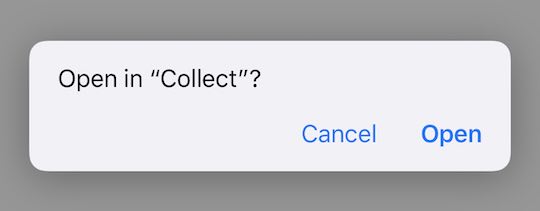 ### Alternate Method
**Collect Custom URL Scheme**
```
collectforstripe://
```
To implement, simply replace the `https` link throughout this documentation with the `collectforstripe://` format.
---
## Subscriptions
Source: https://docs.collectforstripe.com/api/subscriptions
## Subscribe A Customer
With this same URL scheme, you may also create and subscribe customers to a Stripe Price with recurring billing.
```
https://app.collectforstripe.com/launchApp?action=subscribe&subscriptionId=[stripe_price_id]&callback=[callbackURL]
```
_Example: Your website has a sign-up form, and you would like to sell memberships in person. Upon new sign-up, trigger this action to create a Stripe Customer, swipe a credit card and subscribe in one simple step._
_or_
```
collectforstripe://?action=subscribe&subscriptionId=[stripe_price_id]&callback=[callbackURL]
```
Please note you may also subscribe existing customers. This option will be presented upon landing in the Collect for Stripe app.
### Action
required
Tell the app what type of action to take. In this case, you want to `subscribe`.
```
action=subscribe
```
### Subscription ID
required
In Stripe, this is the `price_id` of the desired recurring Price (e.g. starts with `price_`). You can find this in your Stripe Dashboard Product catalog.
If tax is set in the Collect for Stripe app, it will be added to this subscription **and noted** before submitting. That tax is set as a percentage on the Stripe Subscription object itself, so it can be easily changed, reset or removed in your Stripe Dashboard later.
### Callback
Provide any URL, and Collect will automatically send customers here after charge completion (or failure) with a `result` and a `customer`.
```
callback=https://mywebsite.com/hook
```
The customer object will now have the new card attached, as well as a new subscription object. See [Retrieve the Subscription](#retrieve-the-subscription) for more.
---
## Retrieve the Subscription
At the end of a subscription, Collect will route to your provided callback. The system will append a `result` parameter so you can confirm success or failure.
```
https://mywebsite.com/hook?result=[success/fail]
```
### Success
Check the `result` parameter to confirm a successful subscription.
```
https://mywebsite.com/hook?result=success&customer=cus_0123456789
```
The main parameter for you to retrieve all relevant subscription information is `customer`. This will be the actual Stripe Customer ID, which you can use to query Stripe's API and continue in your own app as needed.
### Fail
In the event the subscription flow fails or is canceled, Collect will route to your callback with 'fail' as the `result`.
```
https://mywebsite.com/hook?result=fail
```
---
### Alternate Method
**Collect Custom URL Scheme**
```
collectforstripe://
```
To implement, simply replace the `https` link throughout this documentation with the `collectforstripe://` format.
---
## Subscriptions
Source: https://docs.collectforstripe.com/api/subscriptions
## Subscribe A Customer
With this same URL scheme, you may also create and subscribe customers to a Stripe Price with recurring billing.
```
https://app.collectforstripe.com/launchApp?action=subscribe&subscriptionId=[stripe_price_id]&callback=[callbackURL]
```
_Example: Your website has a sign-up form, and you would like to sell memberships in person. Upon new sign-up, trigger this action to create a Stripe Customer, swipe a credit card and subscribe in one simple step._
_or_
```
collectforstripe://?action=subscribe&subscriptionId=[stripe_price_id]&callback=[callbackURL]
```
Please note you may also subscribe existing customers. This option will be presented upon landing in the Collect for Stripe app.
### Action
required
Tell the app what type of action to take. In this case, you want to `subscribe`.
```
action=subscribe
```
### Subscription ID
required
In Stripe, this is the `price_id` of the desired recurring Price (e.g. starts with `price_`). You can find this in your Stripe Dashboard Product catalog.
If tax is set in the Collect for Stripe app, it will be added to this subscription **and noted** before submitting. That tax is set as a percentage on the Stripe Subscription object itself, so it can be easily changed, reset or removed in your Stripe Dashboard later.
### Callback
Provide any URL, and Collect will automatically send customers here after charge completion (or failure) with a `result` and a `customer`.
```
callback=https://mywebsite.com/hook
```
The customer object will now have the new card attached, as well as a new subscription object. See [Retrieve the Subscription](#retrieve-the-subscription) for more.
---
## Retrieve the Subscription
At the end of a subscription, Collect will route to your provided callback. The system will append a `result` parameter so you can confirm success or failure.
```
https://mywebsite.com/hook?result=[success/fail]
```
### Success
Check the `result` parameter to confirm a successful subscription.
```
https://mywebsite.com/hook?result=success&customer=cus_0123456789
```
The main parameter for you to retrieve all relevant subscription information is `customer`. This will be the actual Stripe Customer ID, which you can use to query Stripe's API and continue in your own app as needed.
### Fail
In the event the subscription flow fails or is canceled, Collect will route to your callback with 'fail' as the `result`.
```
https://mywebsite.com/hook?result=fail
```
---