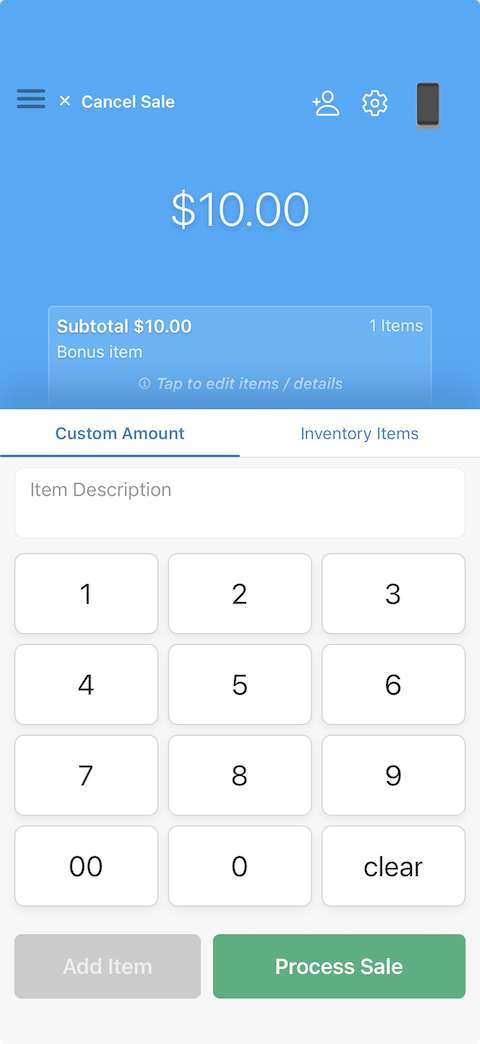
Collect for Readers
Run Collect as an on-reader app on your Stripe Reader S700 or S710. No phone or tablet required — the reader is the point of sale.
Sign in on the device and start a payment; the built-in card reader handles tap, chip, and swipe. There's no "connect a reader" step.
Supports Collect user accounts & permissions.
What You Need
- A Stripe Reader S700 or S710 (order from your Stripe Dashboard)
- A Stripe account created through Collect — Stripe only allows apps on readers for accounts created through the platform that provides the app
In Stripe, that looks like the Collect logo alongside your logo:

Getting Set Up
If your Stripe account is already created through Collect
- Register your S700 or S710 to a Location in that account's Stripe Dashboard
- Contact us via the Help button (bottom-right) on collectforstripe.com/support with that Location — we'll deploy Collect to your readers
- Restart the reader using the power button on the side
- Sign in on the reader, choose the right Stripe account if prompted, and take payments
If you need to create a Stripe account through Collect
A second Stripe account is common — any existing ones stay unchanged. Stripe lets you copy details from it for faster verification (same bank account works too).
- Create a Collect Account — confirm your email and set a password
- During the Connect with Stripe step, choose Create a new account (not an existing one)
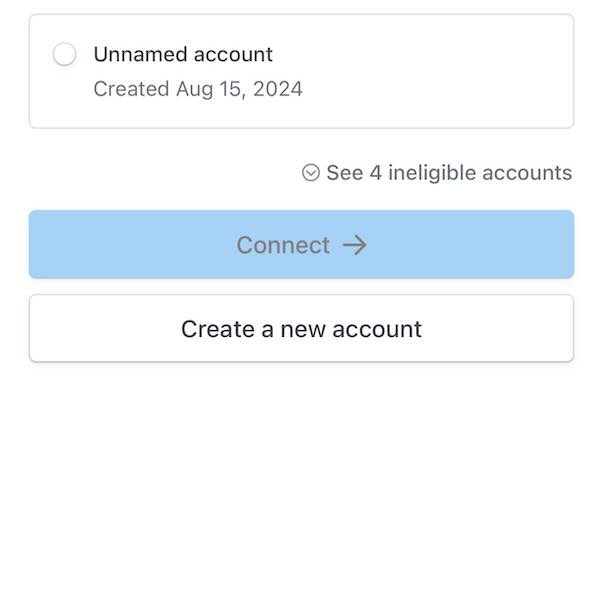
Choose Create a new account
- Register your S700 or S710 to a Location in that account's Stripe Dashboard
- Contact us via the Help button (bottom-right) on collectforstripe.com/support with that Location — we'll deploy Collect to your readers
- Restart the reader using the power button on the side
- Sign in on the reader, choose the right Stripe account if prompted, and take payments