Quick Start: Stripe Connect
Quick Start is the fastest way to get started. It combines both account connection and sign-in into a single step. No complex setup required. Accept payments immediately.
You must be a Stripe Administrator in order to connect your Stripe account to any platform, including Collect.
Connecting Your Stripe Account
- Open the Collect mobile app
- On the sign-in screen, tap "Connect with Stripe"
- Enter your Stripe account email and password, then select the Stripe account you want to connect
- Authorize Collect to access your Stripe account when prompted
That's it! Once connected, you'll have immediate access to all Collect's features.
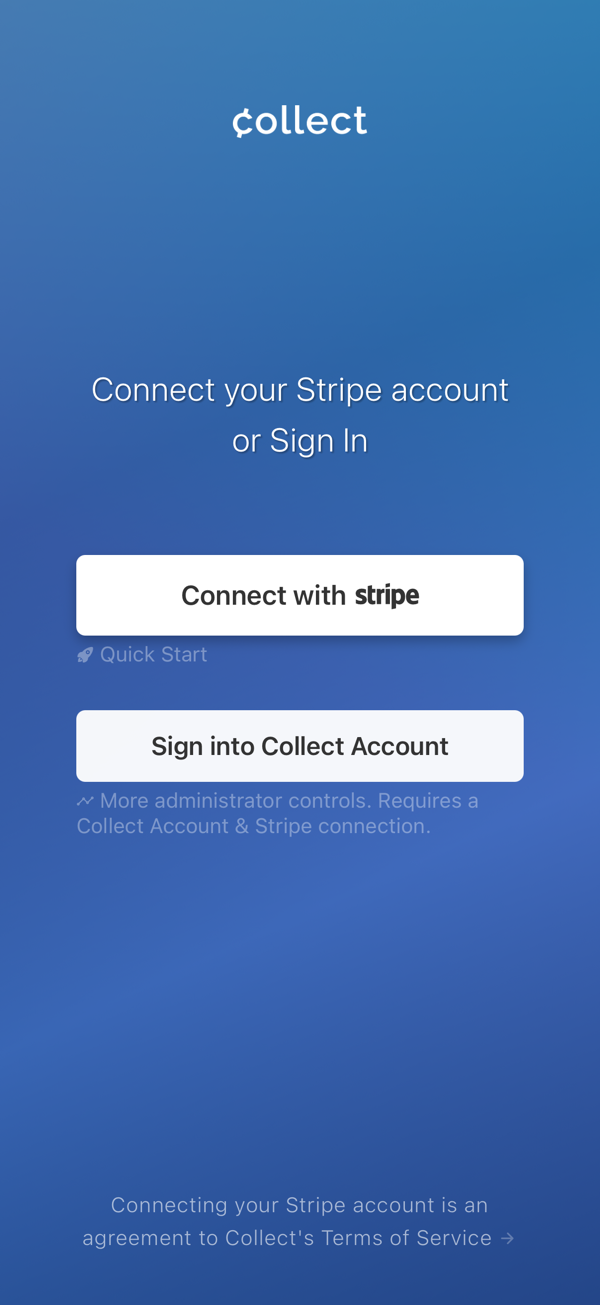
Tap 'Connect with Stripe' to get started
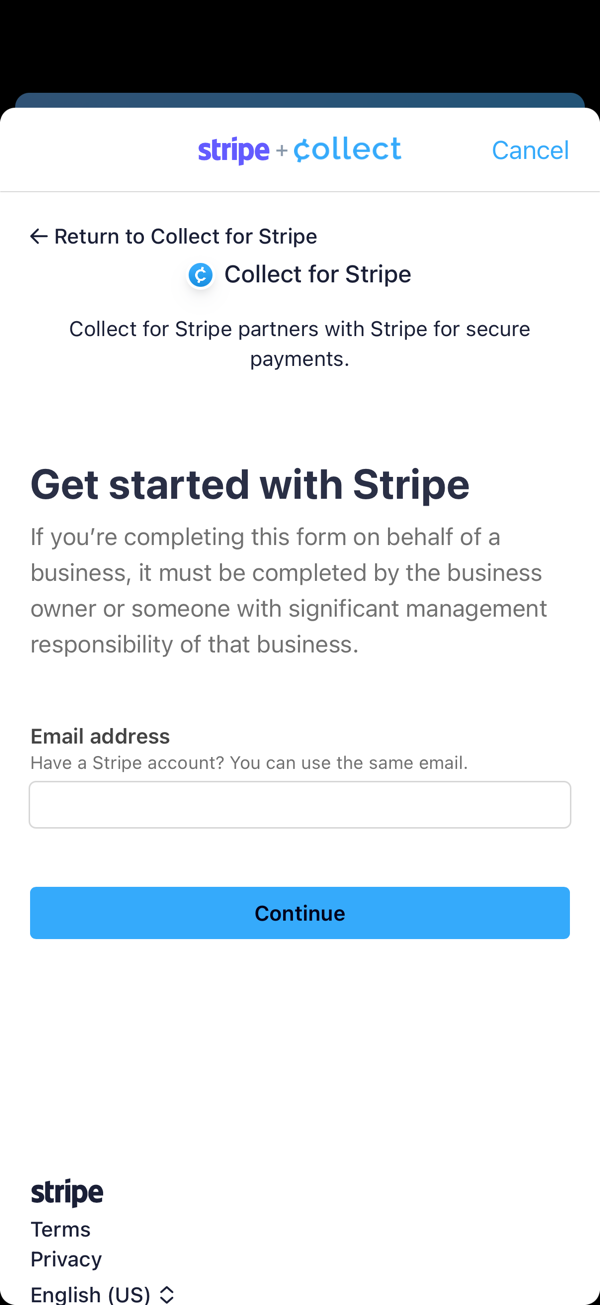
Sign in with your Stripe credentials and select account
Signing In on Additional Devices
You can run Collect on unlimited devices simultaneously, whether using this Quick Start or signing in with a Collect Account.
Just repeat the above steps on any new device.
Consider using a Collect Account if you want to:
- Manage multiple Stripe accounts (highly recommended - makes switching between accounts seamless)
- Have team members sign in without Stripe credentials
- Manage multiple users with different permission levels
- Restrict access to certain features or data
- Track user activity and/or revoke access
Troubleshooting
Can't sign in?
First, verify if you are using a Collect Account or Stripe Connect.
- Stripe Connect: Contact Stripe directly to reset your password.
- Collect Account: Reset your password here or use the email sign-in link option on the app's sign-in screen.
Next Steps
- Learn about permission levels if you're considering team access later
- Explore the mobile app