Creating Subscriptions
Collect can create Stripe Subscriptions for recurring billing directly from the mobile app. Subscriptions are built on top of your existing Stripe Product catalog— if you have Products with recurring Prices in Stripe, they're already available in Collect.
You need the Transactions - Subscriptions permission to create subscriptions. When a recurring item is added to a transaction, the Payment Flow will automatically prompt for a Customer.
Note: Collect users without the Customers - Use permission won't have access to the Customers screen, so they can't start a subscription from a Customer's detail view.
How It Works
Subscriptions in Collect use the same Inventory and transaction flow as one-time payments, with a few key differences:
- Recurring items come from your Stripe Product catalog. Collect automatically syncs your Stripe Products into a dedicated Stripe Products group in Inventory. Products with recurring Prices (monthly, yearly, etc.) appear alongside one-time Products.
- A Customer is always required. Subscriptions need a Customer with a payment method, so Collect will require one regardless of your Payment Flow's Customer setting.
- A payment method is required. See Step 5 of Creating a Subscription below.
Creating a Subscription
- Start a new transaction from the main screen.
- Switch to the Inventory tab and open the Stripe Products group.
- Add one or more items that have recurring Prices. The item's price and billing interval come from your Stripe Product configuration.
- Follow the Payment Flow prompts. Since a Customer is required, you'll be asked to select or create one.
- Collect checks for an existing payment method on the Customer. If none is found, you'll be prompted to capture one via card reader or manual entry. You can also choose to capture a new card even if the Customer already has one on file.
- Process the transaction.
Collect creates the Stripe Subscription using the captured or selected payment method and the recurring Price(s) you selected. The payment method is saved to the Customer for future billing. Tax rates from your Payment Flow are applied to the subscription if configured.
You cannot mix recurring and one-time items in the same transaction. If you add a recurring item, all items in that transaction must be recurring. Start a separate transaction for one-time charges.
Stripe Products in Inventory
Collect automatically imports your Stripe Product catalog, including both one-time and recurring Products. Synced Products appear in a dedicated Stripe Products group, visually distinguished with Stripe branding.
- One-time Prices are processed as regular payments.
- Recurring Prices trigger the subscription flow described above.
The distinction is based on the Price type configured in your Stripe Product catalog. You don't need to configure anything in Collect -- just set up your Products and Prices in Stripe, and they'll appear in the Stripe Products group automatically.
For more on how Inventory works, see Managing Products.
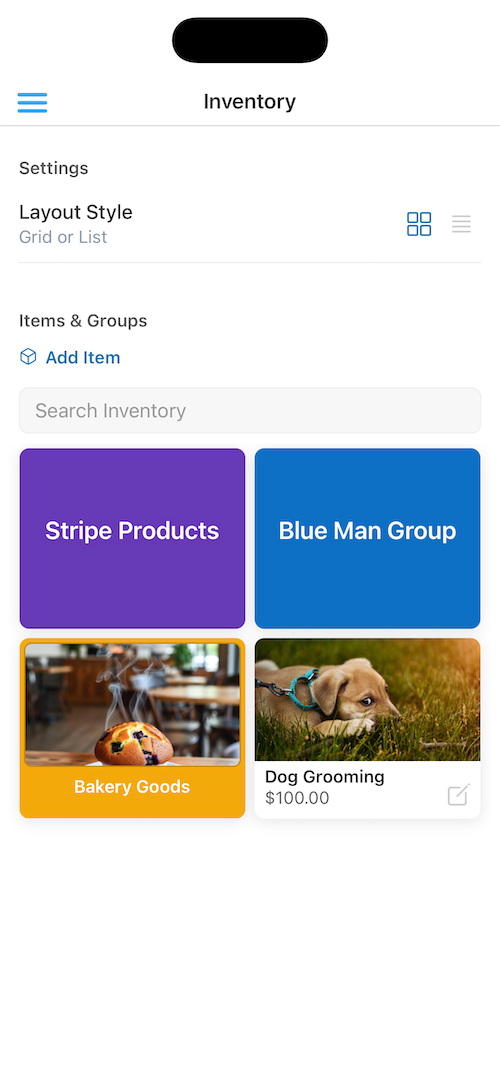
The Stripe Products group in Inventory, including those with Recurring Prices
What Happens After
Once a subscription is created:
- The subscription appears on the Customer's detail screen under Active Subscriptions, showing the product name, price, billing interval, and status.
- Stripe handles all future billing automatically— recurring invoices, payment collection, and retries are managed by Stripe.
- You can view and manage the subscription from the Stripe Dashboard.
Requirements
To create subscriptions in Collect, you need:
- At least one Stripe Product with a recurring Price in your Stripe catalog.
- The Stripe Product sync must be active (your Products appear in the Stripe Products group in Inventory).
- A Customer with a saved payment method, or the ability to collect one at the time of sale.
Related Topics
- Managing Products -- Inventory and Stripe Product sync
- Managing Customers -- Creating Customers and saving payment methods
- Payment Flows -- Configuring transaction behavior
- Processing Transactions -- General transaction flow